Collection

Court Rejects Defendant’s “Ultra-Broad” Request, Denies Motion to Compel Production – eDiscovery Case Law

 

In NOLA Spice Designs, LLC v. Haydel Enters., Inc., No. 12-2515 (E.D. La. Aug. 2, 2013), Louisiana Magistrate Judge Joseph C. Wilkinson, Jr. denied a motion to compel a plaintiff and its principal (a third-party defendant) to produce their passwords and usernames for all websites with potentially relevant information and to compel a forensic examination of its computers.

In this trademark infringement case under the Lanham Act, the defendant moved to compel the plaintiff and its principal to produce “‘passwords and user names to all online websites related to the issues in this litigation, including social media, weblogs, financial information and records,’” and to “submit their computers to an exhaustive forensic examination . . . with ‘access to full electronic content [including] online pages and bank accounts, including without limitation, online postings, weblogs, and financial accounts, for a time period from October 13, 2009 to the present, including deleted and archived content.”  

The plaintiff and its principal refused to disclose passwords and user names based on “privacy and confidentiality objections.”  While acknowledging that the defendant is correct in stating that “there is no protectable privacy or confidentiality interest in material posted or published on social media”, Judge Wilkinson noted that the defendant’s citation and arguments “miss the point”.  Judge Wilkinson stated that “ultra-broad request for computer passwords and user names poses privacy and confidentiality concerns that go far beyond published social media matters and would permit Haydel to roam freely through all manner of personal and financial data in cyberspace pertaining to” the plaintiff and its principal.

With regard to the request for forensic examination of the computers of the plaintiff and its principal, Judge Wilkinson acknowledged that such an examination is “within the scope of ESI discovery contemplated by Fed. R. Civ. P. 34(a)(1)(A).  However, “such requests are also subject to the proportionality limitations applicable to all discovery under Rule 26(b)(2)(C), including the prohibition of discovery that is unreasonably cumulative or duplicative or that could be obtained from some more convenient, less burdensome or less expensive source, or the benefit of which is outweighed by its burden or expense, when considering the needs of the case, the amount in controversy, the parties’ resources, the importance of the issues at stake and the importance of the proposed discovery to those issues.”  {emphasis added}

While “restrained and orderly computer forensic examinations” have been permitted when it’s been demonstrated that the producing party “has defaulted in its discovery obligations by unwillingness or failure to produce relevant information by more conventional means”, a party’s “mere skepticism that an opposing party has not produced all relevant information is not sufficient to warrant drastic electronic discovery measures”, added Judge Wilkinson.

As a result, Judge Wilkinson ruled that “this overly broad request seeking electronically stored information (ESI), which far exceeds the proportionality limits imposed by Fed. R. Civ. P. 26(b)(2)(C) – expressly made applicable to ESI by Rule 26(b)(2)(B) – is denied.” {emphasis added}

So, what do you think?  Did the defendant’s request exceed proportionality limits?   Please share any comments you might have or if you’d like to know more about a particular topic.

Disclaimer: The views represented herein are exclusively the views of the author, and do not necessarily represent the views held by CloudNine Discovery. eDiscoveryDaily is made available by CloudNine Discovery solely for educational purposes to provide general information about general eDiscovery principles and not to provide specific legal advice applicable to any particular circumstance. eDiscoveryDaily should not be used as a substitute for competent legal advice from a lawyer you have retained and who has agreed to represent you.


A Model for Reducing Private Data – eDiscovery Best Practices

Since the Electronic Discovery Reference Model (EDRM) annual meeting just four short months ago in May, several EDRM projects (Metrics, Jobs, Data Set and the new Native Files project) have already announced new deliverables and/or requested feedback.  Now, the Data Set project has announced another new deliverable – a new Privacy Risk Reduction Model.

Announced in yesterday’s press release, the new model “is a process for reducing the volume of private, protected and risky data by using a series of steps applied in sequence as part of the information management, identification, preservation and collection phases” of the EDRM.  It “is used prior to producing or exporting data containing risky information such as privileged or proprietary information.”

The model uses a series of six steps applied in sequence with the middle four steps being performed as an iterative process until the amount of private information is reduced to a desirable level.  Here are the steps as described on the EDRM site:

  • Define Risk: Risk is initially identified by an organization by stakeholders who can quantify the specific risks a particular class or type of data may pose. For example, risky data may include personally identifiable information (PII) such as credit card numbers, attorney-client privileged communications or trade secrets.
  • Identify Available Data: Locations and types of risky data should be identified. Possible locations may include email repositories, backups, email and data archives, file shares, individual workstations and laptops, and portable storage devices. The quantity and type should also be specified.
  • Create Filters: Search methods and filters are created to ‘catch’ risky data. They may include keyword, data range, file type, subject line etc.
  • Run Filters: The filters are executed and the results evaluated for accuracy.
  • Verify Output: The data identified or captured by the filters is compared against the anticipated output. If the filters did not catch all the expected risky data, additional filters can be created or existing filters can be refined and the process run again. Additionally, the output from the filters may identify additional risky data or data sources in which case this new data should be subjected the risk reduction process.
  • Quarantine: After an acceptable amount of risky data has been identified through the process, it should be quarantined from the original data sets. This may be done through migration of non-risky data, or through extraction or deletion of the risky data from the original data set.

No EDRM model would be complete without a handy graphic to illustrate the process so, as you can see above, this model includes one that illustrates the steps as well as the risk-time continuum (not to be confused with the space-time continuum, relatively speaking)… 😉

Looks like a sound process, it will be interesting to see it in use.  Hopefully, it will enable the Data Set team to avoid some of the “controversy” experienced during the process of removing private data from the Enron data set.  Kudos to the Data Set team, including project co-leaders Michael Lappin, director of archiving strategy at Nuix, and Eric Robi, president of Elluma Discovery!

So, what do you think?  What do you think of the process?   Please share any comments you might have or if you’d like to know more about a particular topic.

Disclaimer: The views represented herein are exclusively the views of the author, and do not necessarily represent the views held by CloudNine Discovery. eDiscoveryDaily is made available by CloudNine Discovery solely for educational purposes to provide general information about general eDiscovery principles and not to provide specific legal advice applicable to any particular circumstance. eDiscoveryDaily should not be used as a substitute for competent legal advice from a lawyer you have retained and who has agreed to represent you.

eDiscovery Daily is Three Years Old!

We’ve always been free, now we are three!

It’s hard to believe that it has been three years ago today since we launched the eDiscoveryDaily blog.  We’re past the “terrible twos” and heading towards pre-school.  Before you know it, we’ll be ready to take our driver’s test!

We have seen traffic on our site (from our first three months of existence to our most recent three months) grow an amazing 575%!  Our subscriber base has grown over 50% in the last year alone!  Back in June, we hit over 200,000 visits on the site and now we have over 236,000!

We continue to appreciate the interest you’ve shown in the topics and will do our best to continue to provide interesting and useful posts about eDiscovery trends, best practices and case law.  That’s what this blog is all about.  And, in each post, we like to ask for you to “please share any comments you might have or if you’d like to know more about a particular topic”, so we encourage you to do so to make this blog even more useful.

We also want to thank the blogs and publications that have linked to our posts and raised our public awareness, including Pinhawk, Ride the Lightning, Litigation Support Guru, Complex Discovery, Bryan College, The Electronic Discovery Reading Room, Litigation Support Today, Alltop, ABA Journal, Litigation Support Blog.com, Litigation Support Technology & News, InfoGovernance Engagement Area, EDD Blog Online, eDiscovery Journal, Learn About E-Discovery, e-Discovery Team ® and any other publication that has picked up at least one of our posts for reference (sorry if I missed any!).  We really appreciate it!

As many of you know by now, we like to take a look back every six months at some of the important stories and topics during that time.  So, here are some posts over the last six months you may have missed.  Enjoy!

Rodney Dangerfield might put it this way – “I Tell Ya, Information Governance Gets No Respect

Is it Time to Ditch the Per Hour Model for Document Review?  Here’s some food for thought.

Is it Possible for a File to be Modified Before it is Created?  Maybe, but here are some mechanisms for avoiding that scenario (here, here, here, here, here and here).  Best of all, they’re free.

Did you know changes to the Federal eDiscovery Rules are coming?  Here’s some more information.

Count Minnesota and Kansas among the states that are also making changes to support eDiscovery.

By the way, since the Electronic Discovery Reference Model (EDRM) annual meeting back in May, several EDRM projects (Metrics, Jobs, Data Set and the new Native Files project) have already announced new deliverables and/or requested feedback.

When it comes to electronically stored information (ESI), ensuring proper chain of custody tracking is an important part of handling that ESI through the eDiscovery process.

Do you self-collect?  Don’t Forget to Check for Image Only Files!

The Files are Already Electronic, How Hard Can They Be to Load?  A sound process makes it easier.

When you remove a virus from your collection, does it violate your discovery agreement?

Do you think that you’ve read everything there is to read on Technology Assisted Review?  If you missed anything, it’s probably here.

Consider using a “SWOT” analysis or Decision Tree for better eDiscovery planning.

If you’re an eDiscovery professional, here is what you need to know about litigation.

BTW, eDiscovery Daily has had 242 posts related to eDiscovery Case Law since the blog began!  Forty-four of them have been in the last six months.

Our battle cry for next September?  “Four more years!”  🙂

Disclaimer: The views represented herein are exclusively the views of the author, and do not necessarily represent the views held by CloudNine Discovery. eDiscoveryDaily is made available by CloudNine Discovery solely for educational purposes to provide general information about general eDiscovery principles and not to provide specific legal advice applicable to any particular circumstance. eDiscoveryDaily should not be used as a substitute for competent legal advice from a lawyer you have retained and who has agreed to represent you.

How Big is Your ESI Collection, Really? – eDiscovery Best Practices

When I was at ILTA last week, this topic came up in a discussion with a colleague during the show, so I thought it would be good to revisit here.

After identifying custodians relevant to the case and collecting files from each, you’ve collected roughly 100 gigabytes (GB) of Microsoft Outlook email PST files and loose electronic files from the custodians.  You identify a vendor to process the files to load into a review tool, so that you can perform review and produce the files to opposing counsel.  After processing, the vendor sends you a bill – and they’ve charged you to process over 200 GB!!  Are they trying to overbill you?

Yes and no.

Many of the files in most ESI collections are stored in what are known as “archive” or “container” files.  For example, while Outlook emails can be stored in different file formats, they are typically collected from each custodian and saved in a personal storage (.PST) file format, which is an expanding container file. The scanned size for the PST file is the size of the file on disk.

Did you ever see one of those vacuum bags that you store clothes in and then suck all the air out so that the clothes won’t take as much space?  The PST file is like one of those vacuum bags – it often stores the emails and attachments in a compressed format to save space.  There are other types of archive container files that compress the contents – .ZIP and .RAR files are two examples of compressed container files.  These files are often used to not only to compress files for storage on hard drives, but they are also used to compact or group a set of files when transmitting them, often in email.  With email comprising a major portion of most ESI collections and the popularity of other archive container files for compressing file collections, the expanded size of your collection may be considerably larger than it appears when stored on disk.

When PST, ZIP, RAR or other compressed file formats are processed for loading into a review tool, they are expanded into their normal size.  This expanded size can be 1.5 to 2 times larger than the scanned size (or more).  And, that’s what some vendors will bill processing on – the expanded size.  In those cases, you won’t know what the processing costs will be until the data is expanded since it’s difficult to determine until processing is complete.

It’s important to be prepared for that and know your options when processing that data.  Make sure your vendor selection criteria includes questions about how processing is billed, on the scanned or expanded size.  Some vendors (like the company I work for, CloudNine Discovery), do bill based on the scanned size of the collection for processing, so shop around to make sure you’re getting the best deal from your vendor.

So, what do you think?  Have you ever been surprised by processing costs of your ESI?   Please share any comments you might have or if you’d like to know more about a particular topic.

Disclaimer: The views represented herein are exclusively the views of the author, and do not necessarily represent the views held by CloudNine Discovery. eDiscoveryDaily is made available by CloudNine Discovery solely for educational purposes to provide general information about general eDiscovery principles and not to provide specific legal advice applicable to any particular circumstance. eDiscoveryDaily should not be used as a substitute for competent legal advice from a lawyer you have retained and who has agreed to represent you.

Self-Collecting? Don’t Forget to Check for Image Only Files – eDiscovery Best Practices

Yesterday, we talked about the importance of tracking chain of custody order to be able to fight challenges of electronically stored information (ESI) by opposing parties.  Today, let’s talk about a common mistake that organizations make when collecting their own files to turn over for discovery purposes.

I’ve worked with a number of attorneys who have turned over the collection of potentially responsive files to the individual custodians of those files, or to someone in the organization responsible for collecting those files (typically, an IT person).  Self-collection by custodians, unless managed closely, can be a wildly inconsistent process (at best).  In some cases, those attorneys have instructed those individuals to perform various searches to turn “self-collection” into “self-culling”.  Self-culling can cause at least two issues:

  1. You have to go back to the custodians and repeat the process if additional search terms are identified.
  2. Potentially responsive image-only files will be missed with self-culling.

Unless search terms are agreed to by the parties up front, it’s not unusual to identify additional searches to be performed – even when up front agreement, terms can often be renegotiated during the case.  It’s also common to have a number of image-only files within any collection, especially if the custodians frequently scan executed documents or use fax software to receive documents from other parties.  In those cases, image-only PDF or TIFF files can often make up as much as 20% of the collection.  When custodians are asked to perform “self-culling” by performing their own searches of their data, these files will typically be missed.

For these reasons, I usually advise against self-culling by custodians and also don’t recommend that IT perform self-culling, unless they have the ability to process that data to identify image-only files and perform Optical Character Recognition (OCR) to capture text from them.  If your IT department has the capabilities and experience to do so (and the process and chain of custody is well documented), then that’s great.  Many internal IT departments either don’t have the capabilities or expertise, in which case it’s best to collect all potentially responsive files from the custodians and turn them over to a qualified eDiscovery provider to perform the culling (performing OCR as needed to include responsive image-only files in the resulting responsive document set).  With the full data set available, there is also no need to go back to the custodians to collect additional data (unless the case requires supplemental productions).

So, what do you think?  Do you self-collect data for discovery purposes?  If so, how do you account for image-only files?  Please share any comments you might have or if you’d like to know more about a particular topic.

Disclaimer: The views represented herein are exclusively the views of the author, and do not necessarily represent the views held by CloudNine Discovery. eDiscoveryDaily is made available by CloudNine Discovery solely for educational purposes to provide general information about general eDiscovery principles and not to provide specific legal advice applicable to any particular circumstance. eDiscoveryDaily should not be used as a substitute for competent legal advice from a lawyer you have retained and who has agreed to represent you.

Chain, Chain, Chain: Chain of Custody – eDiscovery Best Practices

If you’re a baseball fan you probably remember Ryan Braun and the reported failed test for performance enhancing drugs that he successfully challenged by challenging the chain of custody associated with his blood sample.  When it comes to electronically stored information (ESI), ensuring proper chain of custody tracking is also an important part of handling that ESI through the eDiscovery process in order to be able to fight challenges of the ESI by opposing parties.  An insufficient chain of custody is a chain, chain, chain of fools.

Information to Track for Chain of Custody

ESI can be provided by a variety of sources and in a variety of media, so you need a standardized way of recording chain of custody for the ESI that you collect within your organization or from your clients.  At CloudNine Discovery, we use a standard form for capturing chain of custody information.  Because we never know when a client will call and ask us to pick up data, our client services personnel typically have a supply of blank forms either in their briefcase or in their car (maybe even both).

Our chain of custody tracking form includes the following:

  • Date and Time: The date and time that the media containing ESI was provided to us.
  • Pick Up or Delivery Location: Information about the location where the ESI was provided to us, including the company name, address, physical location within the facility (e.g., a specific employee’s office) and any additional information important to note where the data was received.
  • Delivering Party: Name of the company and the name of representative of the company providing the media, with a place for that representative to sign for tracking purposes.
  • Delivery Detail (Description of Items): A detailed description of the item(s) being received.  Portable hard drives are one typical example of the media used to provide ESI to us, so we like to describe the brand and type of hard drive (e.g., Western Digital My Passport drive) and the serial number, if available.  Record whatever information is necessary to uniquely identify the item(s).
  • Receiving Party: Name of the company and the name of representative of the company receiving the media, with a place for that representative to sign for tracking purposes.  In our form, that’s usually somebody from CloudNine Discovery, but can be a third party if they are receiving the data from the original source – then, another chain of custody form gets completed for them to deliver it to us.
  • Comments: Any general comments about the transfer of media not already addressed above.

I’ve been involved in several cases where the opposing party, to try to discredit damaging data against them, has attacked the chain of custody of that data to raise the possibility that the data was spoliated during the process and mitigate its effect on the case.  In these types of cases, you should be prepared to have an expert ready to testify about the chain of custody process to counteract those attacks.  Otherwise, you might be singing like Aretha Franklin.

So, what do you think?  How does your organization track chain of custody of its data during discovery?  Please share any comments you might have or if you’d like to know more about a particular topic.

Disclaimer: The views represented herein are exclusively the views of the author, and do not necessarily represent the views held by CloudNine Discovery. eDiscoveryDaily is made available by CloudNine Discovery solely for educational purposes to provide general information about general eDiscovery principles and not to provide specific legal advice applicable to any particular circumstance. eDiscoveryDaily should not be used as a substitute for competent legal advice from a lawyer you have retained and who has agreed to represent you.
Capturing Memory and Obtaining Protected Files with FTK Imager – eDiscovery Best Practices

Over the past few weeks, we have talked about the benefits and capabilities of Forensic Toolkit (FTK) Imager from AccessData (and obtaining your own free copy), how to create a disk image, how to add evidence items for the purpose of reviewing the contents of those evidence items (such as physical drives or images that you’ve created) and how to export files and create a custom content image of a targeted collection of files with FTK Imager.  This week, let’s discuss how to Capture Memory and Obtain Protected Files to collect a user’s account information and possible passwords to other files.

Capture Memory

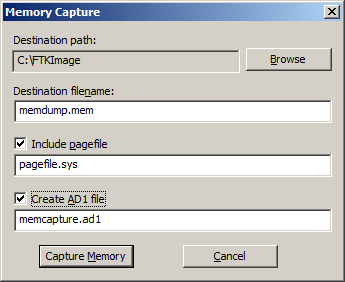
If you’re trying to access the contents of memory from an existing system that’s running, you can use a runtime version of FTK Imager from a flash drive to access that memory.  From the File menu, you can select Capture Memory to capture data stored in memory within the system.

Capturing memory can be useful for a number of reasons.  For example, if TrueCrypt is running to encrypt the contents of the drive, the password could be stored in memory – if it is, Capture Memory enables you to capture the contents of memory (including the password) before it is lost.

Simply specify the destination path and filename to capture memory to the specified file.  You can also include the contents of pagefile.sys, which is a Windows system file that acts as a swap file for memory; hence, it can contain useful memory information as well.  Creating an AD1 file enables you to create an AD1 image of the memory contents – then you can add it as an evidence item to review the contents.

Obtain Protected Files

Because Windows does not allow you to copy or save live Registry files, you would have to image the hard drive and then extract the Registry files, or boot the computer from a boot disk and copy the Registry files from the inactive operating system on the drive. From the File menu, you can select Obtain Protected Files to circumvent the Windows operating system and its file locks, thus allowing you to copy the live Registry files.  If the user allows Windows to remember his or her passwords, that information can be stored within the registry files.

Specify the destination path for the obtained files, then select the option for which files you would like to obtain.  The Minimum files for login recovery option retrieves Users, System, and SAM files from which you can recover a user’s account information.  The Password recovery and all Registry files option is more comprehensive, retrieving Users, System, SAM, NTUSER.DAT, Default, Security, Software, and Userdiff files from which you can recover account information and possible passwords to other files, so it’s the one we tend to use.

For more information, go to the Help menu to access the User Guide in PDF format.

So, what do you think?  Have you used FTK Imager as a mechanism for eDiscovery collection?  Please share any comments you might have or if you’d like to know more about a particular topic.

Disclaimer: The views represented herein are exclusively the views of the author, and do not necessarily represent the views held by CloudNine Discovery. eDiscoveryDaily is made available by CloudNine Discovery solely for educational purposes to provide general information about general eDiscovery principles and not to provide specific legal advice applicable to any particular circumstance. eDiscoveryDaily should not be used as a substitute for competent legal advice from a lawyer you have retained and who has agreed to represent you.

Export Files and Custom Content Images in FTK Imager – eDiscovery Best Practices

Over the past few weeks, we have talked about the benefits and capabilities of Forensic Toolkit (FTK) Imager from AccessData (and obtaining your own free copy), how to create a disk image and how to add evidence items with FTK Imager for the purpose of reviewing the contents of evidence items, such as physical drives or images that you’ve created.  This week, let’s discuss how to export files and how to create a custom content image of a targeted collection of files.

Sometimes, you don’t want to create an image of the entire drive; instead, you’d like to perform a targeted collection or export individual files to review them.  Let’s discuss how to do that.

Export Files

As we discussed last time, you can Add Evidence Item to add a single evidence item to the evidence tree.  You can select a Physical Drive or Logical Drive, an Image File to view an image file created before or Contents of a Folder, to look at a specific folder.  You can also Add All Attached Devices to add all of the attached physical and logical devices.  When you select one or more evidence items, the selected items will be displayed in the Evidence Tree on the left hand side; navigate to the folder you want and it will display the contents on the right hand side.

Select one or more files (use Ctrl+Click to select multiple files or Shift+Click to select a range of files), then right-click on one of the files to display a popup menu.

Select Export Files to export the selected files, then FTK Imager will prompt you for a folder where the files will be saved.  The files will be saved to that folder.  Exporting files can be useful to pull a copy of selected files out of a forensic image for review.

Create Custom Content Image

As you’ll notice in the previous section, when you display the popup menu, another choice is to Add to Custom Content Image (AD1).  This enables you to start building a targeted list of files to be included in a custom image – useful if you want a specific group of files and not everything on the evidence item.

Any files that you select will then be added to the Custom Content Sources pane in the lower left window.  Continue adding items by repeating this step until you’ve specified or selected all the evidence files you want to add to this Custom Content image.  You can also use the Edit button to open the Wild Card Options dialog and select all files that meet a certain criteria (e.g., “My Documents|*.doc” will collect all files with a .doc extension in any folder named My Documents).

Once you have built your desired list of files, you can then build your Custom Content Image.  Select Create Custom Content Image from the file menu.  You can then repeat the steps for the Create Image, Evidence Item Information, Select Image Destination, Drive/Image Verify Results and Image Summary forms as illustrated in our earlier post How to Create an Image Using FTK Imager.  The resulting image will have an AD1 extension.  Then, this image can be examined just like any other image.

For more information, go to the Help menu to access the User Guide in PDF format.

Next time, we will discuss how to Obtain Protected Files to collect a user’s account information and possible passwords to other files.

So, what do you think?  Have you used FTK Imager as a mechanism for eDiscovery collection?  Please share any comments you might have or if you’d like to know more about a particular topic.

Disclaimer: The views represented herein are exclusively the views of the author, and do not necessarily represent the views held by CloudNine Discovery. eDiscoveryDaily is made available by CloudNine Discovery solely for educational purposes to provide general information about general eDiscovery principles and not to provide specific legal advice applicable to any particular circumstance. eDiscoveryDaily should not be used as a substitute for competent legal advice from a lawyer you have retained and who has agreed to represent you.
Adding Evidence Items with FTK Imager – eDiscovery Best Practices

A couple of weeks ago, we talked about the benefits and capabilities of Forensic Toolkit (FTK) Imager, which is a computer forensics software application provided by AccessData, as well as how to download your own free copy.  Then, last week, we discussed how to create a disk image.  This week, let’s discuss how to add evidence items with FTK Imager for the purpose of reviewing the contents of evidence items, such as physical drives or images that you’ve created.

Adding Evidence Items Using FTK Imager

Last week, I created an image of one of my flash drives to illustrate the process of creating an image.  Let’s take a look at that image as an evidence item.

From the File menu, you can select Add Evidence Item to add a single evidence item to the evidence tree.  You can also select Add All Attached Devices to add all of the attached physical and logical devices (If no media is present in an attached device such as a CD- or DVD-ROM or a DVD-RW, the device is skipped).  In this case we’ll add a single evidence item.

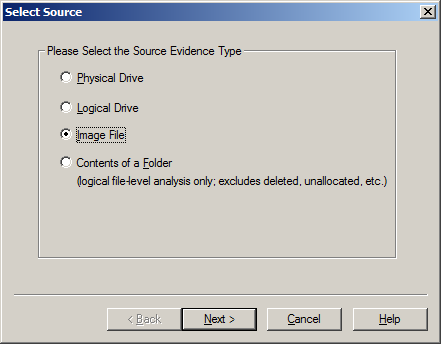
Source Evidence Type: The first step is to identify the source type that you want to review.  You can select Physical Drive or Logical Drive (as we noted before, a physical device can contain more than one logical drive).  You can also select an Image File to view an image file you created before or Contents of a Folder, to look at a specific folder.  In this example, we’ll select Image File to view the image of the flash drive we created and locate the source path of the image file.

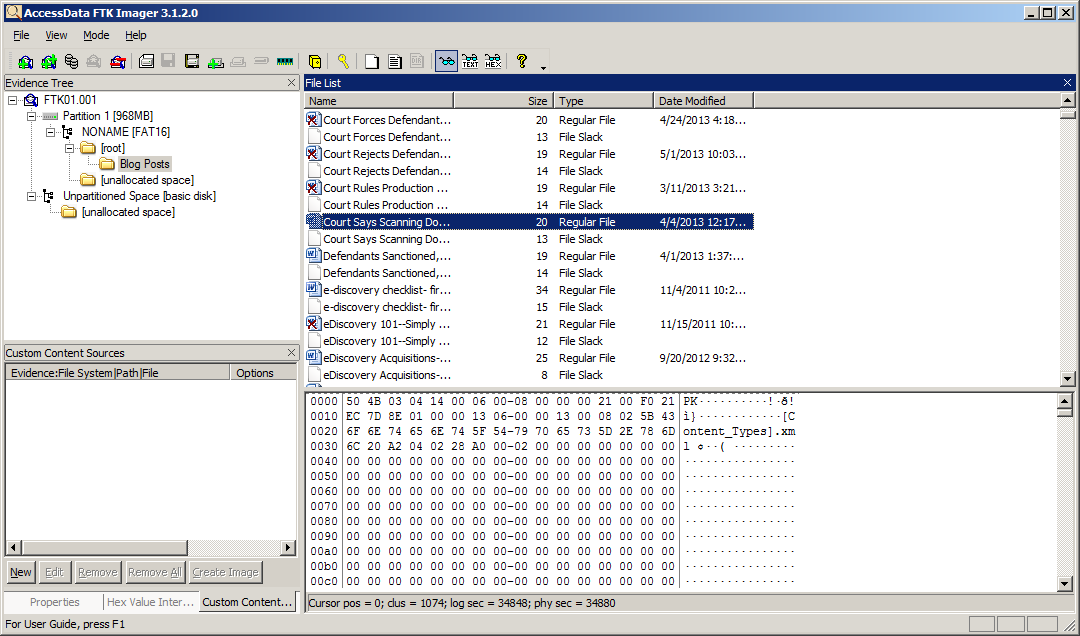
The evidence tree will then display the item – you can keep adding evidence items if you want to look at more than one at once.  The top node is the selected item, from which you can drill down to the contents of the item.  This includes partitions and unpartitioned space, folders from the root folder on down and unallocated space, which could contain recoverable data.  Looking at the “Blog Posts” folder, you see a list of files in the folder, along with file slack.  File slack is the space between the end of a file and the end of the disk cluster in which it is stored. It’s common because data rarely fills clusters exactly, and residual data occur when a smaller file is written into the same cluster as a previous larger file, leaving potentially meaningful data.

You’ll also notice that some of the files have an “X” on them – these are files that have been deleted, but not overwritten.  So, with FTK Imager, you can not only view active data, you can also view inactive data in deleted files, file slack or unallocated space!  When you click on a file, you can view the bit-by-bit contents of the file in the lower right window.  You can also right-click on one or more files (or even an entire folder) to display a pop-up menu to enable you to export a copy of the file(s) out and review them with the native software.  You can also Add to Custom Content Image to begin compiling a list of files to put into an image, enabling you to selectively include specific files (instead of all of the files from the device) into the image file you create.

Next time, we’ll discuss Add to Custom Content Image in more detail and discuss creating the custom content image of specific files you select.

For more information, go to the Help menu to access the User Guide in PDF format.

So, what do you think?  Have you used FTK Imager as a mechanism for eDiscovery collection?  Please share any comments you might have or if you’d like to know more about a particular topic.

Disclaimer: The views represented herein are exclusively the views of the author, and do not necessarily represent the views held by CloudNine Discovery. eDiscoveryDaily is made available by CloudNine Discovery solely for educational purposes to provide general information about general eDiscovery principles and not to provide specific legal advice applicable to any particular circumstance. eDiscoveryDaily should not be used as a substitute for competent legal advice from a lawyer you have retained and who has agreed to represent you.
Defendant Compelled by Court to Produce Metadata – eDiscovery Case Law

Remember when we talked about the issue of metadata spoliation resulting from “drag and drop” to collect files?  Here’s a case where it appears that method may have been used, resulting in a judgment against the producing party.

In AtHome Care, Inc. v. The Evangelical Lutheran Good Samaritan Society, No. 1:12-cv-053-BLW (D. ID. Apr. 30, 2013), Idaho District Judge B. Lynn Winmill granted the plaintiff’s motion to compel documents, ordering the defendant to identify and produce metadata for the documents in this case.

In this pilot project contract dispute between two health care organizations, the plaintiff filed a motion to compel after failing to resolve some of the discovery disputes with the defendant “through meet and confers and informal mediation with the Court’s staff”.  One of the disputes was related to the omission of metadata in the defendant’s production.

Judge Winmill stated that “Although metadata is not addressed directly in the Federal Rules of Civil Procedure, it is subject to the same general rules of discovery…That means the discovery of metadata is also subject to the balancing test of Rule 26(b)(2)(C), which requires courts to weigh the probative value of proposed discovery against its potential burden.” {emphasis added}

“Courts typically order the production of metadata when it is sought in the initial document request and the producing party has not yet produced the documents in any form”, Judge Winmill continued, but noted that “there is no dispute that Good Samaritan essentially agreed to produce metadata, and would have produced the requested metadata but for an inadvertent change to the creation date on certain documents.”

The plaintiff claimed that the system metadata was relevant because its claims focused on the unauthorized use and misappropriation of its proprietary information and whether the defendant used the plaintiff’s proprietary information to create their own materials and model, contending “that the system metadata can answer the question of who received what information when and when documents were created”.  The defendant argued that the plaintiff “exaggerates the strength of its trade secret claim”.

Weighing the value against the burden of producing the metadata, Judge Winmill ruled that “The requested metadata ‘appears reasonably calculated to lead to the discovery of admissible evidence.’ Fed.R. Civ.P. 26(b)(1). Thus, it is discoverable.” {emphasis added}

“The only question, then, is whether the burden of producing the metadata outweighs the benefit…As an initial matter, the Court must acknowledge that Good Samaritan created the problem by inadvertently changing the creation date on the documents. The Court does not find any degree of bad faith on the part of Good Samaritan — accidents happen — but this fact does weight in favor of requiring Good Samaritan to bear the burden of production…Moreover, the Court does not find the burden all that great.”

Therefore, the plaintiff’s motion to compel production of the metadata was granted.

So, what do you think?  Should a party be required to produce metadata?  Please share any comments you might have or if you’d like to know more about a particular topic.

Disclaimer: The views represented herein are exclusively the views of the author, and do not necessarily represent the views held by CloudNine Discovery. eDiscoveryDaily is made available by CloudNine Discovery solely for educational purposes to provide general information about general eDiscovery principles and not to provide specific legal advice applicable to any particular circumstance. eDiscoveryDaily should not be used as a substitute for competent legal advice from a lawyer you have retained and who has agreed to represent you.